madScanner — see what uses your disk space
When a drive is running out of space, madScanner helps you find the largest folders and files. It scans a selected drive or folder and displays sizes as an interactive sunburst map. The application runs on Windows and Linux, is written in C++17 with FLTK, and reads file metadata without opening file contents.
Reading the map
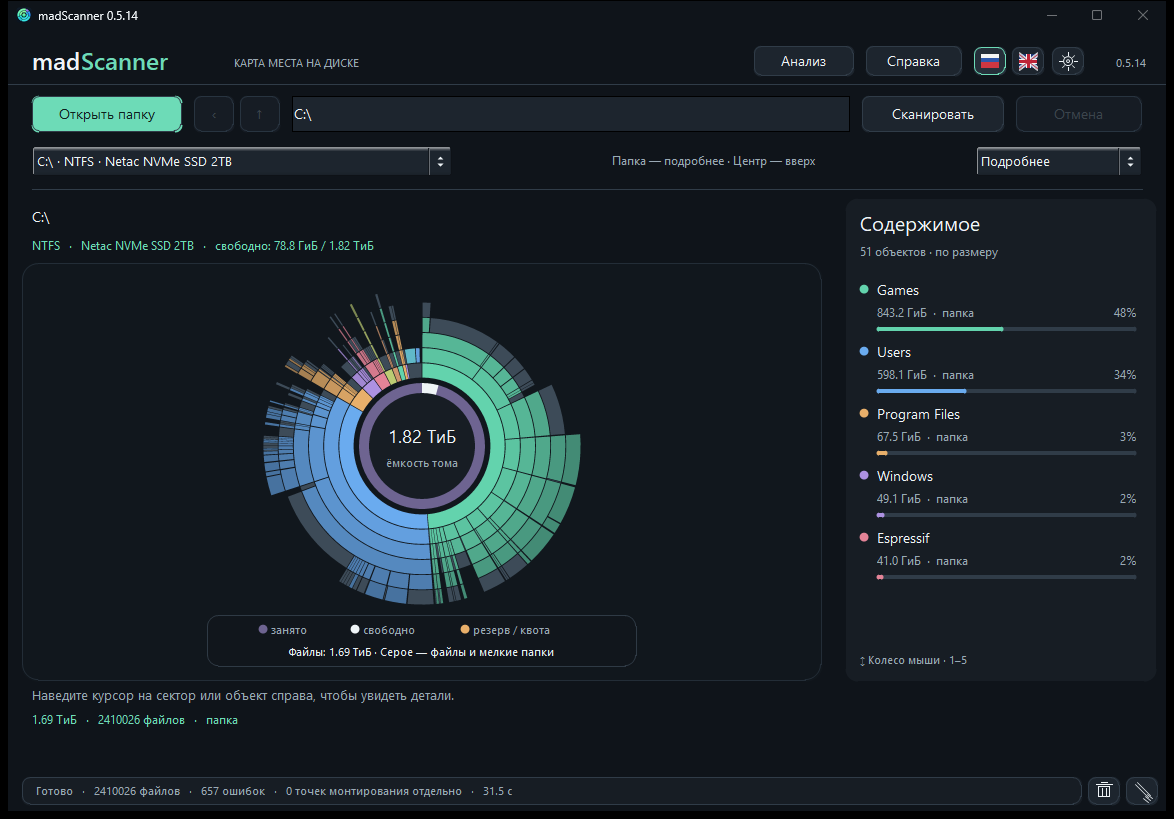
The inner ring shows the immediate contents of the selected folder. Sector angle corresponds to a file or folder's logical size, while outer rings show nested folders. Small items and individual files are combined into a gray sector, with their sizes included in the total. You can inspect individual files in the list on the right. Click a folder to explore it without rescanning. A separate center ring shows used, available, and reserved space on the whole file system.
How to use it
Version 0.5.14 includes instant Russian/English switching with toolbar flags. The settings button controls language, light or dark theme, initial map detail, and live preview while scanning. Both Windows installers include this bilingual application.
- Install and launch madScanner. Click “Open folder,” choose a drive from “File systems,” or enter a path and press Enter.
- Click “Scan.” If a scan takes too long, “Cancel” stops it and shows a partial result.
- Hover over a sector or item on the right for its path, size, and file count. Click a folder to enter it.
- Click the map center or press Backspace to go up one level. Alt+Left returns to the previous view. Right-click opens the context menu.
- Use Overview, Normal, or Detailed for different levels of detail. Analyze or Ctrl+F lists the 200 largest files and searches names. F5 refreshes the snapshot; F1 opens help.
- Right-click a file or folder to reveal it in the file manager, copy its path, open a terminal, or move it to the system trash after confirmation. The trash button empties the trash only after another confirmation; the broom button opens it for manual management.
File systems and limits
Volume capacity and free space come from the operating system. On Windows, madScanner attempts to show the model of local drives and the remote host of mapped network drives. On Linux, separate mount points are marked as boundaries and can be scanned individually. Symbolic links, reparse points, and special files are skipped. File sizes are logical; compression, sparse files, and file-system metadata may make actual disk use different. After files change, press F5 to rescan.
The installer includes the executable, documentation, and license notices. Installation requires administrator rights, adds a Start menu entry, and can be removed through Windows Settings. The Russian edition is also available.